
RESEARCH WORKSPACE / MULTI-PANEL FIGURES
Multi Panel Figure Maker
Combine your research images into one multi-panel figure. Choose from 14 layouts, set the width and panel labels, then export PNG, TIFF, PDF, or SVG.
Free export. No sign-in required.
Loading workspace…
What is a multi panel figure?
A multi panel figure combines related charts, microscopy images, or diagrams into one figure with panel labels such as A, B, and C. Each panel contributes one part of the result. The layout gives readers a consistent order and lets you refer to individual panels in the figure legend.
Start with finished images from your analysis or drawing tools. MakeFigures arranges those panels at a physical width you choose. Prepare plot axes, scale bars, and annotations in the source files before adding them here.
How to make a multi-panel figure
Choose a grid or mixed layout
Pick a grid or mixed layout from 14 presets. Use a 2 × 2 grid for four related panels, or a wide panel with smaller details. Changing the layout keeps displaced images in the unplaced tray.
Add, swap, and arrange panels
Add PNG, JPEG, WebP, or supported SVG files. Drop several images at once, then drag panels to swap positions. Images fit within their cells at the original aspect ratio. The layout does not crop them.
Set dimensions and labels
Choose a column width preset or enter 30–300 mm. Adjust panel spacing, proportions, and label size. Use uppercase or lowercase letters, place them inside or outside, and edit individual labels when needed.
Check resolution and export
Read the effective DPI of each raster panel at its placed size. Replace low-resolution sources or make their placement smaller. Choose PNG, TIFF, PDF, or SVG and export locally. Raster output supports 300 or 600 DPI.
Choose a layout for your research panels
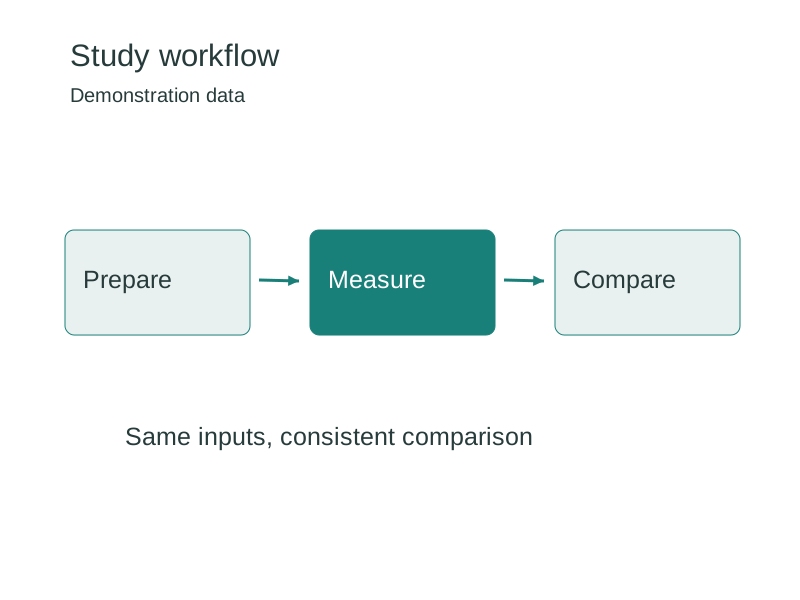
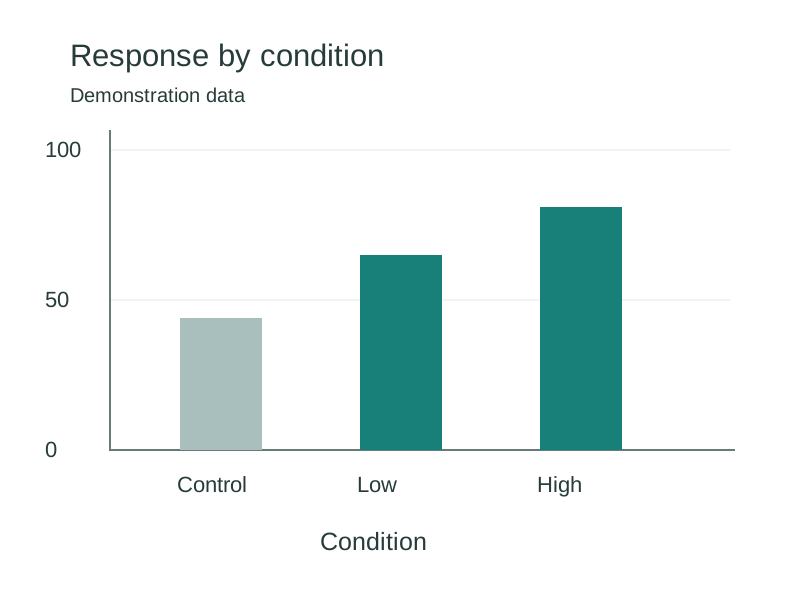
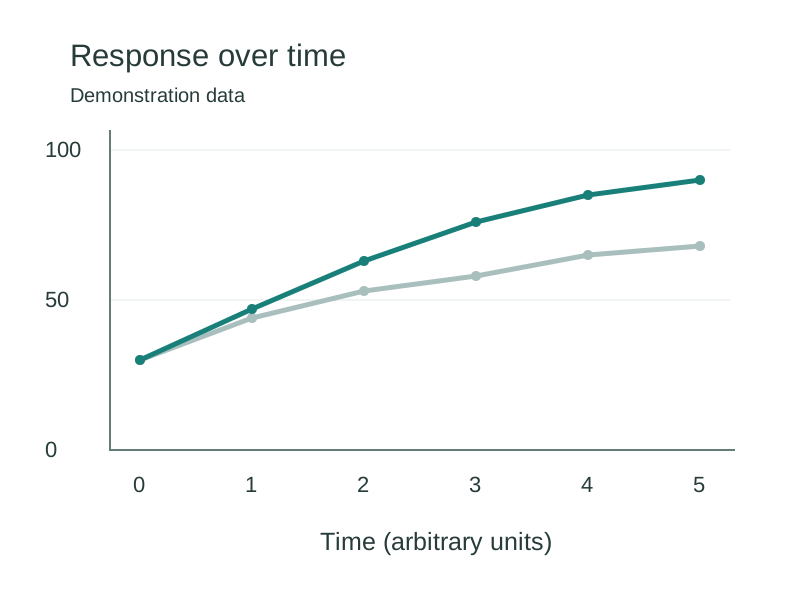
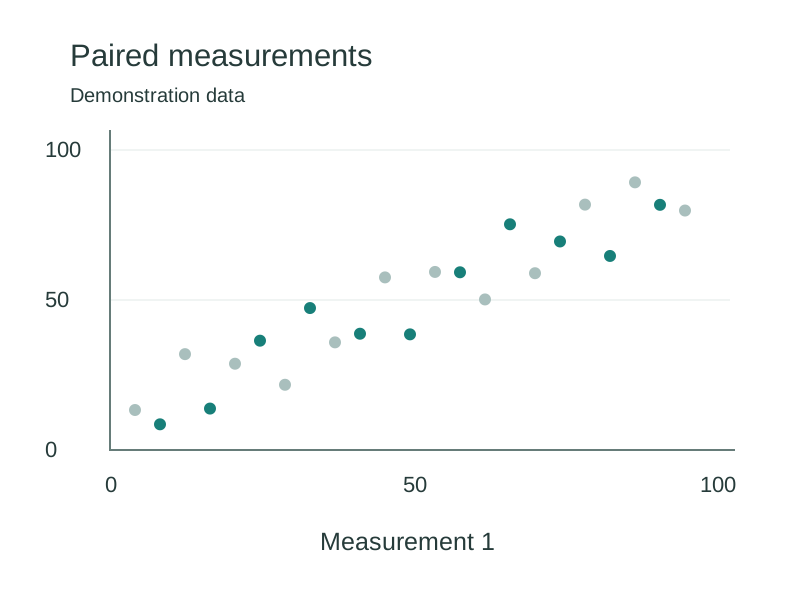
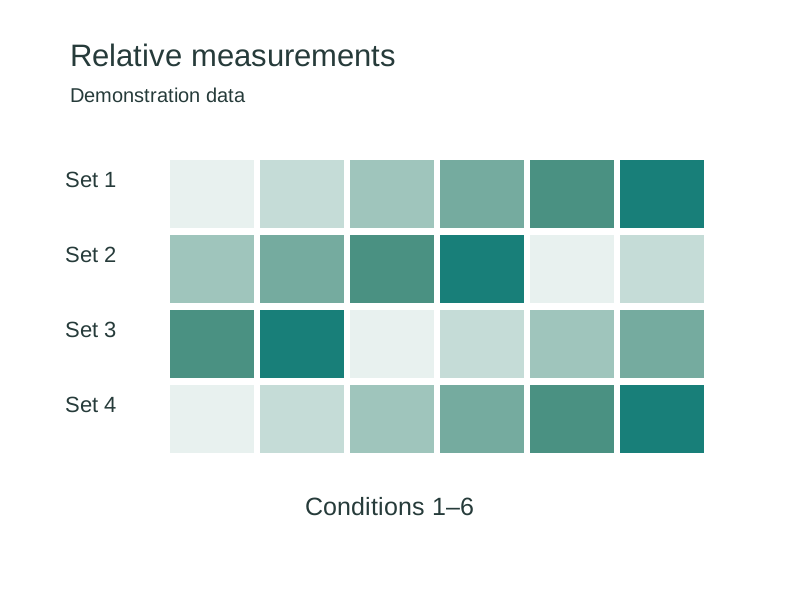
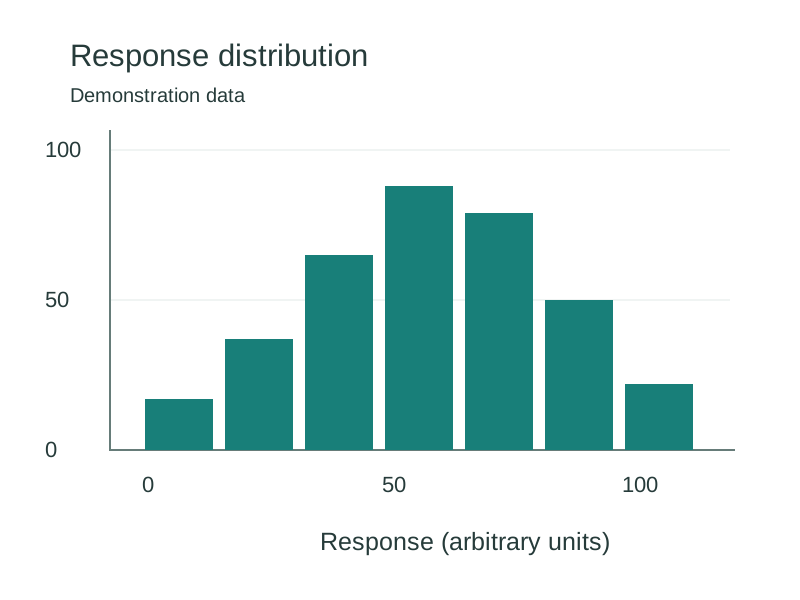
Use the arrangement to guide reading order. Compare related conditions in equal cells, or give an overview more space than its supporting panels. The example below was assembled and exported with this tool.
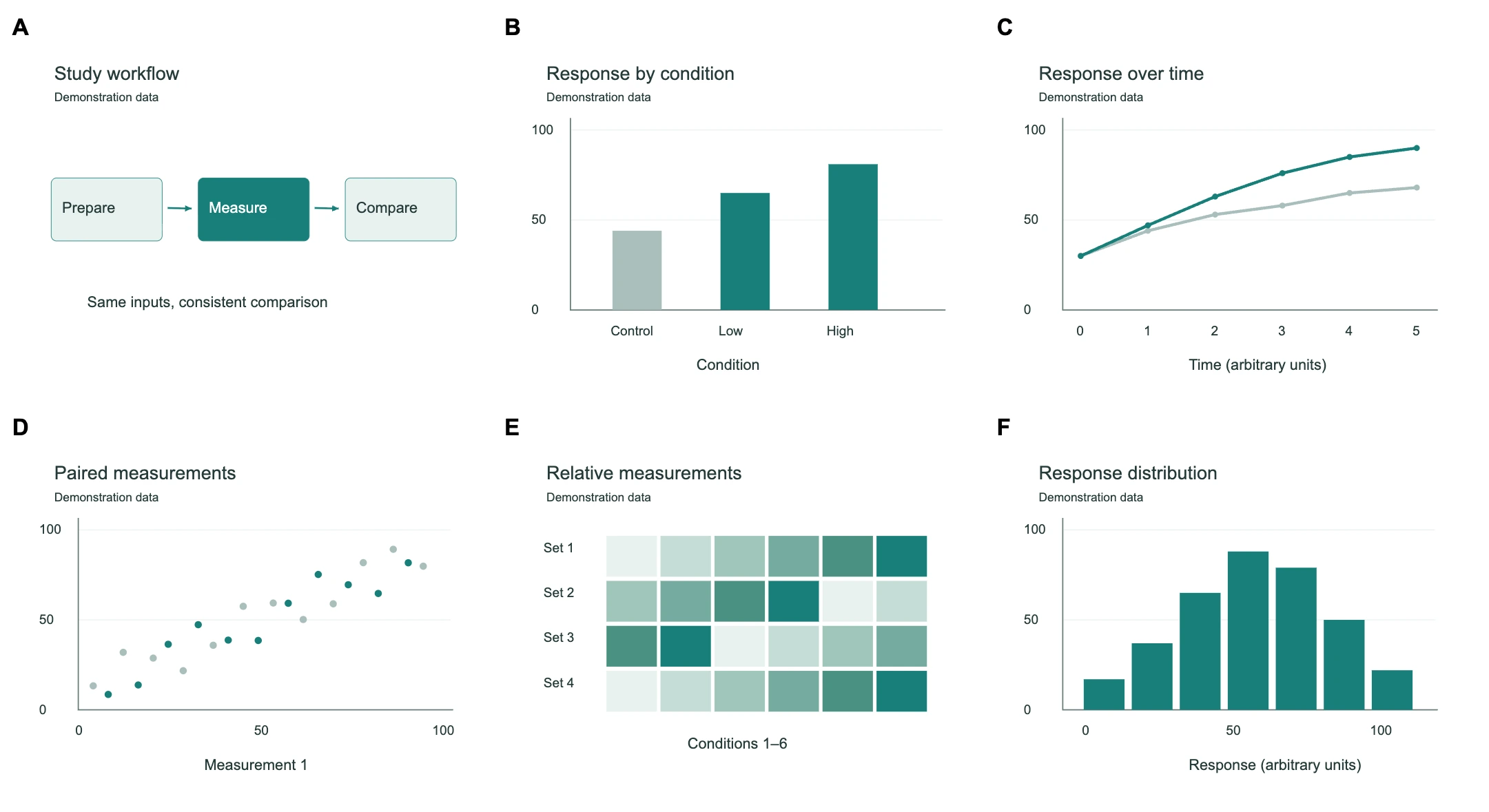
- 2 × 2 and 2 × 3 grids
- Use equal cells for related measurements. A 2 × 2 grid holds four panels; 2 × 3 holds six. Keep axis text readable at the final placed size, since labels inside an imported chart scale with that image.
- Side-by-side comparisons
- A 1 × 2 layout places two related panels on one row. Pair a representative image with its quantification, or compare two conditions. Keep the same group colors and units in your source charts.
- An overview with supporting details
- Try a wide-top or main-and-detail layout when one panel needs more room. Follow it with supporting plots or close-ups. Choose the arrangement before exporting so the figure legend follows the same panel order.
Download the example project to import and rearrange it, or inspect the exported files:
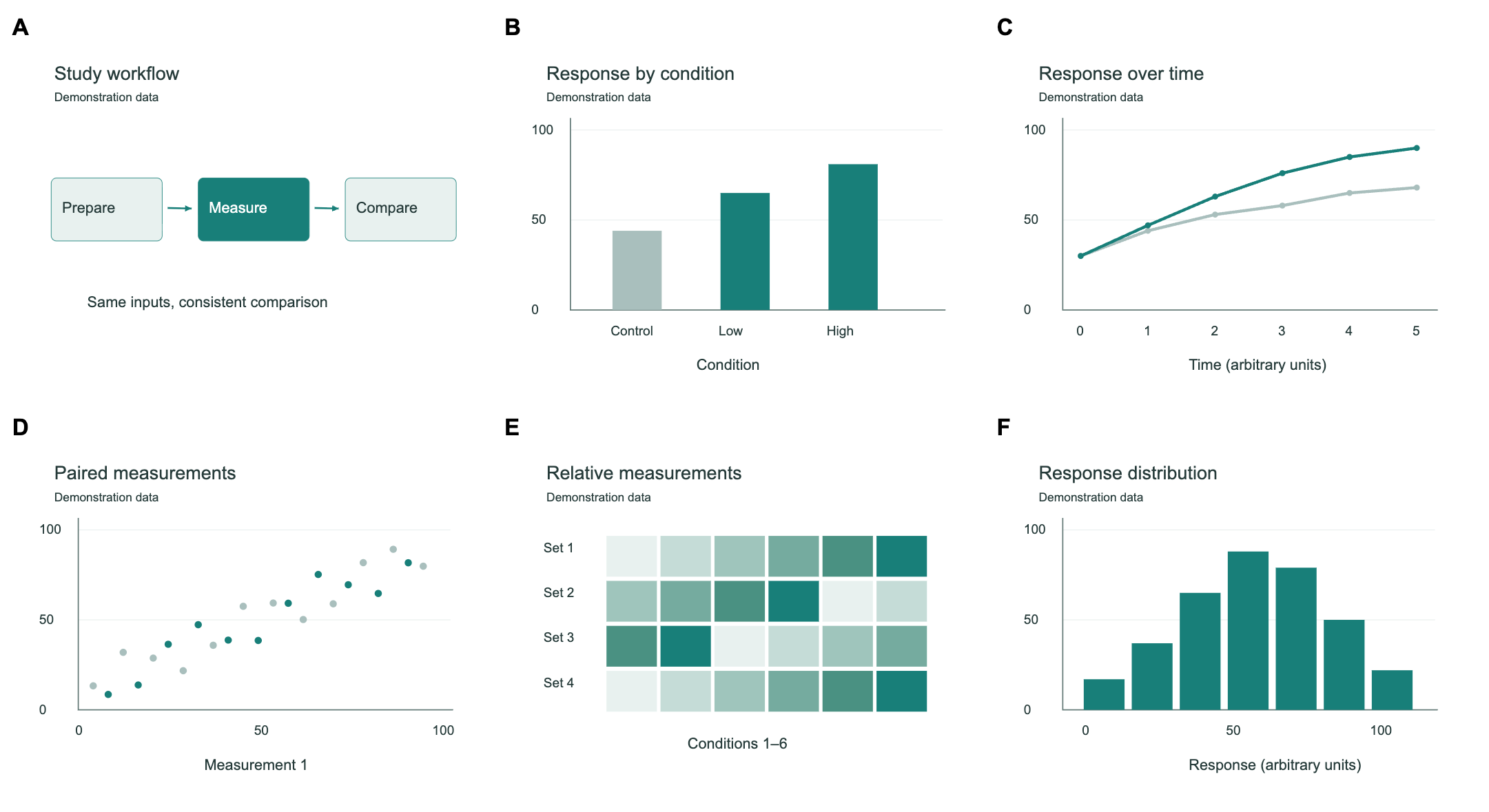
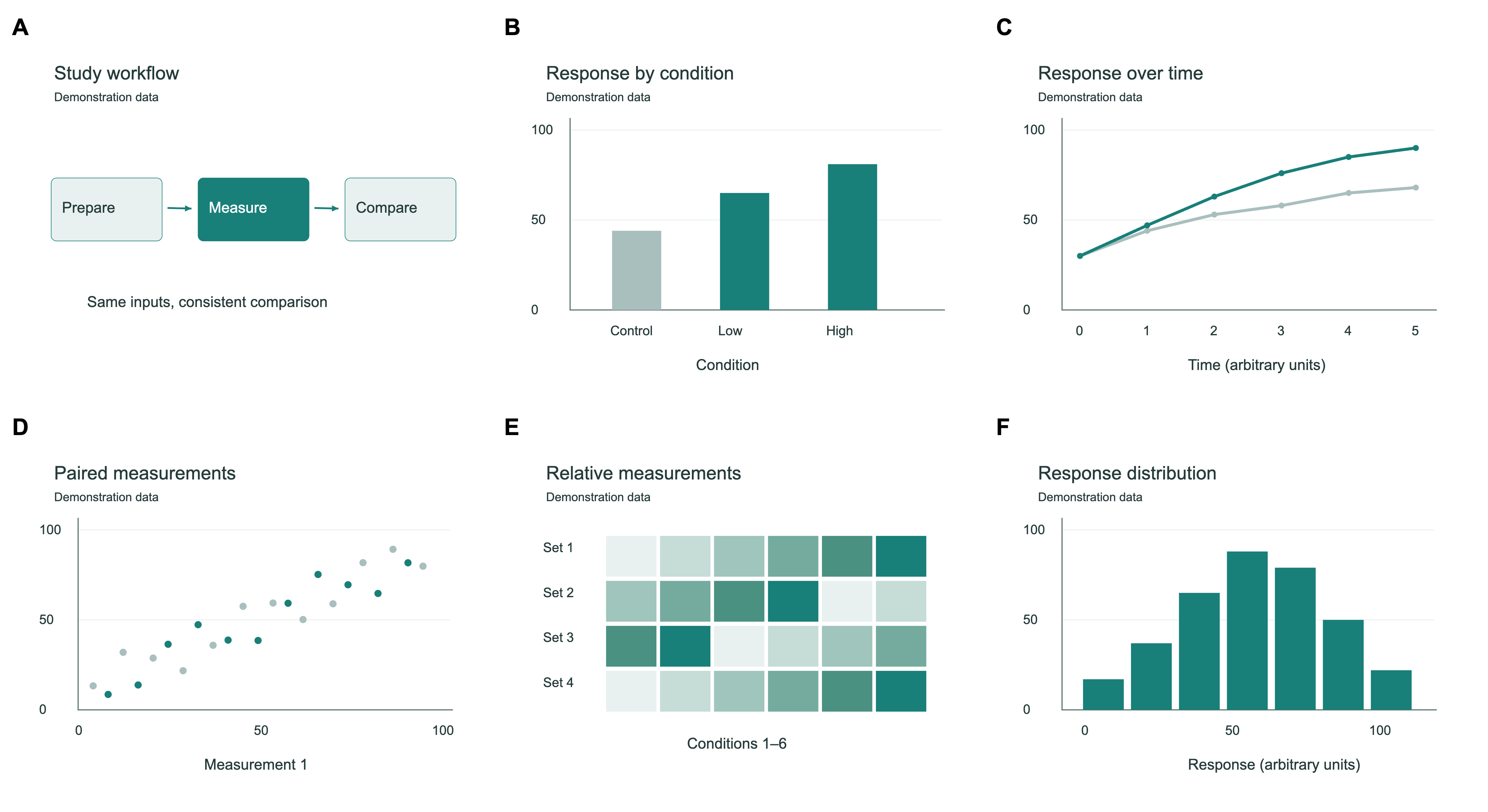
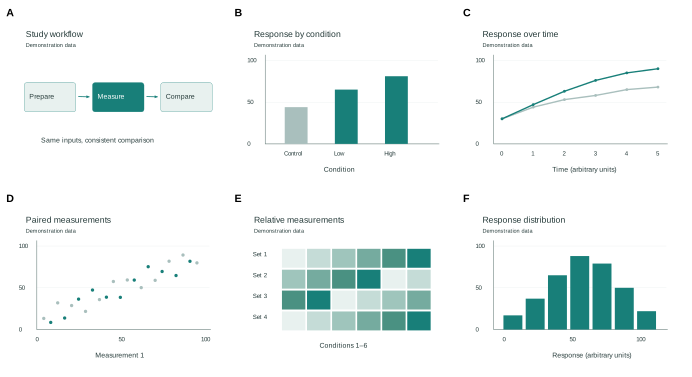
Download the six source panels
Set figure width and check effective DPI
Work in millimeters at the figure’s intended print size. The Nature presets are 89 mm for one column and 183 mm for two columns. Custom widths range from 30–300 mm. Presets set width only; check the current instructions for your journal and article type.
Effective DPI describes the resolution of a raster panel at the size it occupies in the figure. It depends on the source pixel width and the placed width, rather than the DPI number selected for export.
Effective DPI = source width in pixels × 25.4 ÷ placed width in mm
A 1,200-pixel image placed 100 mm wide has an effective resolution of about 305 DPI. At 50 mm wide, it has about 610 DPI. A smaller placement can meet a higher resolution target using the same source.
Selecting 600 DPI export does not add missing source detail. A yellow warning means a panel is below your selected export DPI. It is a resolution warning, not a complete journal compliance check.
Read Nature’s current figure preparation instructionsCompare PNG, TIFF, PDF, and SVG exports
Choose a format based on your next step and your publisher’s requirements. All four formats export with a white background. Empty slots and editing guides are excluded.
| Format | What you get |
|---|---|
| PNG | A raster figure at 300 or 600 DPI, with resolution metadata. Useful for previews and documents that accept PNG. |
| TIFF | An uncompressed RGB raster figure at 300 or 600 DPI. Files can be larger than PNG. |
| A raster image on a page at the selected physical size. Text and panels are flattened; this is not an editable vector PDF. | |
| SVG | Supported vector panels and separate panel labels stay vector. Imported raster images remain embedded raster images. |
Local output is limited to 8192 pixels per side, 32 million pixels in total, and 64 MiB per file. Large figures at 600 DPI may need a smaller width or lower export setting.
Save your project in this browser
Local image files are read, arranged, and exported in your browser. A layout export does not send those imported files to an AI provider. Projects are saved locally and separated by account or guest.
Download a JSON project backup to move work between devices or keep a copy before clearing browser data. Local storage is not a cloud backup. AI figure generation elsewhere on MakeFigures uses a separate processing workflow.
Multi Panel Figure FAQ
Is the multi panel figure maker free?
Layout and all four export formats run in your browser, without sign-in or generation credits. AI figure generation uses the existing generation workflow.
Which files can I use as panels?
Add PNG, JPEG, WebP, or supported SVG files. TIFF and PDF are export formats only. Each file can be up to 5 MB; one batch can contain up to 20 files totaling 16 MB. A project holds up to 40 images, with up to 12 placed at once in the largest layout.
How do export formats differ?
PNG and TIFF are raster images with the selected pixel dimensions and DPI metadata. PDF is a raster image page with physical dimensions, not an editable vector PDF. SVG preserves supported vectors and independent text labels; embedded raster images remain raster.
Where are my images and projects stored?
Imported local images are not uploaded. Projects stay in this browser, separated by account or guest. Clearing browser data, changing devices, or ending a private session can remove them. Download a JSON project backup.
Does 600 DPI export improve source detail?
It does not add source detail. Effective DPI is calculated from source pixels and placed physical size. Yellow means below the selected export DPI. Use a larger source or smaller placement. Warnings do not block export.
Can I import any SVG?
Basic SVG shapes, paths, text, and files from this project’s SVG editor are safely reconstructed. Scripts, external links, complex filters, and unsupported transforms are rejected. Embedded raster resolution still depends on its source. Convert complex files to PNG if needed.
Do column presets guarantee journal compliance?
No. Presets are shortcuts for common widths. Requirements vary by journal and article type. Custom widths range from 30–300 mm. Check your target journal’s dimensions, fonts, color, and file rules.